
 Main Menu
 Catalogs
 Cities
 Search
 Sim Time

 City Status
 Did You Know...
 FreeSO Blog
 Quick Links
 Game Guides
 |
Custom Objects |
| Creating an Object | Ordering More | |
 Back to Custom Content | Back to Custom Content |  Print Page Print Page |

|
Creating an Object Step #1 While the process of creating an object is more difficult than a custom picture, there are many great tutorials available on the internet that are easy to follow. Take a look at the custom content introduction for links to some. After you have completed your custom object, an IFF file will have been created. Step #2 Copy the object IFF file from your The Sims 1.0 folder, which is usually located at C:\Program Files\Maxis\The Sims\Downloads\Transmogrified\ over to the custom content folder EA has created. From your desktop click on "My Documents" then "EA Games" then "EA-Land" and finally "Uploads". Inside this folder you will need to make another folder named "Chairs", "Tables", or "Sculptures" depending on which type of object you are uploading. Once you have created the folder copy any of the object IFF files you want to upload to it.  Path to the Chairs Folder Step #3 Locate an open Services lot where you can make use of a Thumbhammer Workbench. Clicking on the workbench will give you the option to "Custom Build" the type of object you want to create. 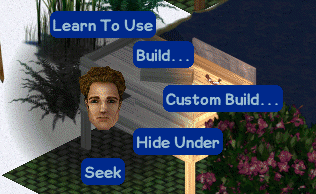 Custom Build on the Thumbhammer Workbench Step #4 You will be presented with a panel at the bottom of your screen that allows you to select one of the objects you copied to your custom content folder, and see a preview of how the object looks in game. Select the object you want to upload and click the middle button on the left side of the panel to describe your custom object. 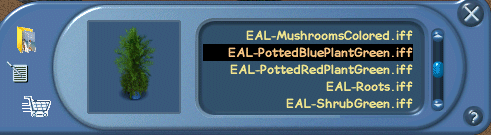 Selecting an Object Step #5 Enter a title and description for your object. This will be seen when someone views the object in their inventory or uses the custom content viewer interaction. After you have entered both pieces of information click the last button on the left side of the panel to complete your custom content order. 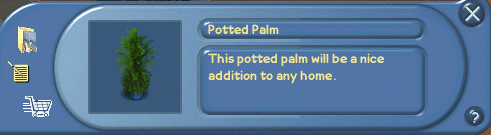 Entering the Details Step #6 Select the number of copies you want to make of your object (1, 5 or 10), and if you are uploading a dining chair choose the comfort level by selecting either Cheap, Moderate, Expensive, or Very Expensive. The higher the comfort level of your dining chair, the greater the cost will be. If you approve of the cost click on the "Place Order!" button. 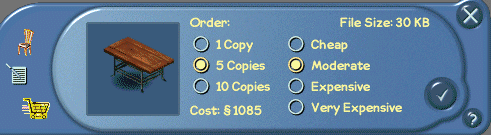 Ordering a Chair You will recieve a confirmation dialog that the upload was successful and the object will be placed in your inventory. The object will initially appear as one of the proxy (placeholder) objects until it has been approved by an EA staff member. You will recieve an in-game mail message once it has been approved/disapproved. 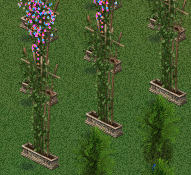
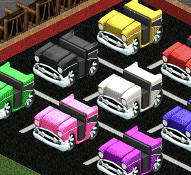 Custom Sculptures at a Store and Custom Chairs Made by Thrill Congratulations! You now have a custom object you can place in your home. Ordering More You are limited to an initial order of 10 of the same custom object. If you need more than 10 you do not have to create or upload the same object again, instead you can use the reordering feature. To reorder a custom object simply place the object out on your lot, or have a friend place it on theirs, then click on the object and select "Reorder 1, 5 or 10". You will then be given the cost of the order, and be asked to confirm it. Once confirmed the objects will be placed in your inventory.  Reordering Custom Content |